

The best internet bandwidth for smart home devices depends less on your device count than on what those devices are doing at the same time. A thermostat or smart lock uses little data most of the time. Security cameras can upload video while someone streams a show or joins a video call, creating more demand on your connection.
It’s reasonable to wonder whether every connected device competes for your internet. But adding smart plugs, lights, and speakers doesn’t automatically mean you need the fastest plan available. The right fit depends on your household’s active tasks, especially video streaming and camera uploads, and on whether Wi-Fi reaches the rooms where your devices are used.
This guide shows you how to estimate your household’s bandwidth needs, identify when upload speed or latency matters more than download speed, and distinguish a plan-speed issue from a Wi-Fi coverage problem. You’ll also compare fiber and fixed wireless for everyday smart-home use, including AT&T Fiber Internet and AT&T Internet Air. Use the steps below to match a connection to your routines without paying for speed you’re unlikely to use.
Key Takeaways
- The best internet bandwidth for smart home devices depends more on simultaneous activity than your total number of connected devices.
- Estimate household demand by identifying data-heavy devices and mapping when they’re used at the same time.
- Check upload speed for cameras and other devices that send data, and consider latency and Wi-Fi coverage alongside download speed.
- Compare fiber and fixed wireless based on your household workload, connection conditions, equipment, and upload needs.
- Use a peak-use checklist to narrow your needs, compare current plan terms and speeds, and check availability by address.
Best Internet Bandwidth for Smart Home Devices: Start With What Is Active
Bandwidth is the capacity of an internet connection to transfer data over time, usually measured in megabits per second (Mbps). Think of it as how much data can move at once. Internet bandwidth is your connection’s data-carrying capacity; Wi-Fi signal strength is how well your devices connect to the router. A strong signal can’t increase your plan’s capacity, and a fast plan can’t fix weak Wi-Fi in a distant room. For a foundational explanation, see Understanding Bandwidth in Computing.
A connected device isn’t necessarily a busy device. A smart lock may stay online for occasional status checks, while a camera configured to upload video may send data continuously. Don’t count every device as though it’s streaming at full capacity. Instead, focus on activities happening at the same time, such as a 4K stream, a work video call, and camera uploads.
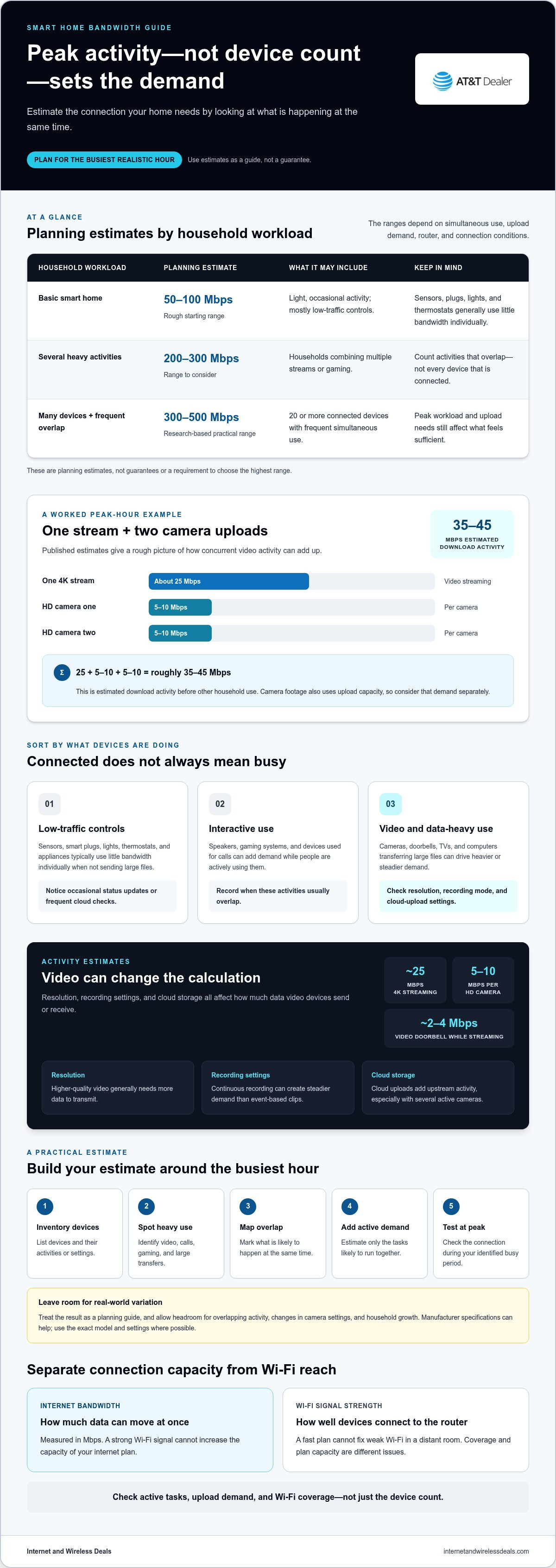
For a rough starting point, treat these as planning estimates, not guarantees: 50-100 Mbps may suit a basic smart home with light, occasional activity; households combining multiple streams or gaming may want to consider 200-300 Mbps. For a home with 20 or more connected devices and frequent simultaneous use, research recommendations suggest a practical range of 300-500 Mbps. Your peak workload, upload demand, router, and connection conditions all affect what feels sufficient.
Do smart home devices use bandwidth when they are idle?
Often, they use some background data, but the amount varies by device, settings, and how its service works. A sensor might send a brief status update, while an appliance checks for instructions occasionally. That’s different from continuous video or regular cloud uploads. There’s no single Mbps figure for every idle smart device, so focus on the activities and settings that create sustained data use.
Which smart-home activities use the most bandwidth?
Simple sensors, smart plugs, thermostats, lights, and appliances generally use little bandwidth individually when they aren’t sending large files. Smart speakers also tend to be light users outside active audio streaming. Video can change the calculation: Gateway Fiber and Flume Internet estimate that 4K streaming uses about 25 Mbps, while HD security cameras can use 5-10 Mbps per camera. Flume Internet estimates video doorbells at about 2-4 Mbps while streaming.
- Resolution: Higher-quality video generally needs more data to transmit.
- Recording settings: Continuous recording can create steadier demand than event-based clips.
- Cloud storage: Uploading footage to cloud storage adds upstream activity, especially when several cameras are active.
These activities can overlap. A camera uploading footage while someone streams in 4K and another person joins a video call may put more pressure on the connection than a larger number of idle sensors. Plan for your home’s busiest routine, not its biggest device count.
How to Estimate Smart Home Bandwidth for Your Household
Build your estimate around the busiest realistic hour, not your full device list. Use five steps: inventory devices, identify heavy-use equipment, map overlapping activities, add the demand for tasks likely to run together, and test your connection during that peak period. This turns “How many devices do I have?” into the more useful question: “How much data is my household moving at once?”
Build a practical device and activity inventory
Start with a simple list and sort devices by what they do. Include each activity and its settings, not just the device name.
- Low-traffic controls: Sensors, plugs, lights, and thermostats. Note whether they send occasional status updates or perform frequent cloud checks.
- Interactive devices: Speakers, gaming systems, and devices used for calls. Record when people use them and whether those activities usually overlap.
- Video or data-heavy equipment: Cameras, doorbells, TVs, and computers transferring large files. Record camera resolution, recording mode, and cloud-upload settings.
Next, mark your household’s likely peak window. Perhaps one person streams while another works remotely and cameras upload footage. Include gaming or large downloads only if they commonly overlap with those activities. Manufacturer specifications can help estimate device demand. Use the exact model and settings where possible, since features and data use vary.
Turn peak-hour use into a bandwidth estimate
Add estimates only for activities likely to happen at the same time. For a worked example, Gateway Fiber and Flume Internet estimate a 4K stream at about 25 Mbps, while Highline Fast and Flume Internet put an HD camera at about 5-10 Mbps per camera. Those published estimates date to 2024 and 2026, respectively. One stream plus two cameras uploading at once would therefore represent roughly 35-45 Mbps of estimated download activity, before other household use. Camera uploads also draw on upload capacity, so track that demand separately.
Treat the result as a planning guide, not a guaranteed minimum. Leave some headroom for overlapping activity, changes in camera settings, and household growth. The FCC’s broadband speed guidance offers a useful general reference, but your household’s activity mix makes an estimate practical. For broader context on advertised connection speeds, see the complete 2026 fiber speed guide.
Finally, test during the busy period you identified. Run more than one check, note whether calls, streams, or uploads feel disrupted, and compare the results with your estimate. If performance falls short, repeat the test near your router and in the rooms where devices are used. Comparing the results can help distinguish a capacity issue from a coverage issue. Once you know your likely workload, you can check internet availability by address and explore connection options.
Compare Bandwidth, Upload Speed, Latency, and Wi-Fi Coverage
A smart home can feel slow for different reasons, and each calls for a different fix. Your plan may have plenty of download capacity while a camera struggles to send footage, or your router’s signal may fade before it reaches a device. Consider these four measures before deciding whether your internet plan or in-home network is the bottleneck.
| Measure | What it describes | Why it matters at home |
|---|---|---|
| Download speed | How quickly data travels from the internet to your home. | Supports activities such as streaming video and receiving data from cloud services. |
| Upload speed | How quickly data travels from your home to the internet. | Matters for cameras sending footage, video calls, and other devices that transmit data. |
| Latency | The time data takes to travel between your device and an online destination, often measured in milliseconds. | Lower latency generally helps commands and interactive tasks feel more responsive. |
| Wi-Fi coverage | How well the router’s wireless signal reaches devices around your home. | Weak or inconsistent signal can interrupt a device even when the internet plan has capacity to spare. |
When upload speed matters for smart devices
Upload is the outbound path: a camera captures footage, then sends it through your router and internet connection to a cloud service. A device that uploads occasional clips creates a different pattern from one streaming live video. Several active cameras can add concurrent upstream demand. The best internet bandwidth for smart home devices therefore depends partly on what your devices send, not just what your household downloads.
There’s no single upload-speed target for every home. Camera resolution, recording settings, the number of simultaneous feeds, and other uploads all affect demand. Check the device manufacturer’s specifications for your exact model and settings, then consider whether camera activity overlaps with video calls or other upstream tasks. Smart technology also relies on connected systems beyond the home, a broader context explored in IEEE perspectives on smart technology.
How to spot a Wi-Fi coverage issue instead
Pay attention to where problems happen. If a camera disconnects in a garage or a speaker responds slowly upstairs but works reliably near the router, coverage may be the issue. Walls, distance, router placement, and interference from other wireless signals can weaken the connection. A faster internet plan alone won’t repair a signal that can’t reach the device.
A faster internet plan can add capacity, but it can’t fix a weak Wi-Fi signal between your router and a device. To narrow down the cause, test near the router and in the problem area at similar times, using the same device and a speed-test tool. If results are consistently stronger nearby, focus on signal reach and router placement. If performance is poor in both spots during busy use, plan capacity may be part of the issue. Internet and Wireless Deals helps customers explore AT&T Fiber Internet and AT&T Internet Air and check internet availability by address.
Choose an Internet Connection for Your Smart Home Setup
Match the connection to your household’s actual workload, not just the number on an advertised speed tier. Fiber carries data over optical lines, while fixed wireless connects through a wireless signal between home equipment and the provider’s network. Either may suit a smart home, depending on availability at your address, upload needs, performance at busy times, and the equipment in use.
Compare the options across the factors that affect daily use:
- Availability: The connection must be offered at your address. Check availability before comparing plan details.
- Upload needs: If cameras send frequent footage to cloud services or several people make video calls, compare the plan’s advertised upload speed, not download alone.
- Latency and consistency: Consider how responsive interactive devices need to feel and how the connection performs during your household’s peak hours.
- Home network: Router capability, placement, walls, interference, and connection method can all influence device performance.
Advertised bandwidth is only one part of the picture. Actual results depend on the specific plan, network conditions, equipment, and how the connection reaches your home. More advertised speed won’t necessarily solve dead zones or poor router placement. If a device works near the router but struggles elsewhere, address coverage before assuming the internet plan needs an upgrade.
When a fiber connection may fit a device-heavy household
Fiber may be worth comparing if your household regularly combines camera uploads, remote meetings, high-resolution streaming, and other demanding activities. Look at upload capacity as well as download speed, and compare current, address-specific plan details rather than assuming every fiber plan has identical performance. Explore AT&T Fiber Internet deals when reviewing fiber options.
For example, a household with several cloud-connected cameras and overlapping calls may value stronger upstream capacity more than a home where most devices send occasional status updates. Fiber can be a strong candidate for that workload, but the right choice still depends on the available plan and how your home network distributes the connection.
When fixed wireless may be worth comparing
Fixed wireless, including AT&T Internet Air, uses a wireless connection to bring home internet service to compatible equipment. Availability and real-world performance can vary by address and network conditions, so compare advertised plan details with how your household actually uses the internet. The AT&T Internet Air 2026 connectivity guide provides more context on this connection type.
It may suit a household whose workload fits the available service, while another home may prioritize different upload, responsiveness, or consistency needs. Neither connection type is automatically right for every smart home. Compare the connection method and plan with your busiest realistic routine, then consider performance in the rooms where devices operate. Ready to explore AT&T home internet options? Check availability by address.
Find the Right Bandwidth and Check Your Internet Options
Your final choice should reflect what your household does at its busiest, not the total number of devices connected to Wi-Fi. Before changing plans, compare your expected workload with real performance. If speeds are weak near the router as well as elsewhere, the connection or plan may be limiting you. If problems cluster in certain rooms, investigate coverage too.
A quick bandwidth decision checklist
Use this checklist to turn your household estimate into a practical plan comparison. The goal isn’t to buy the largest speed tier. It’s to make sure the connection supports peak use, upstream activity, and reliable access in the rooms where devices operate.
- Peak activity: Focus on demanding tasks likely to overlap, such as streaming, gaming, and remote meetings, rather than counting every connected device equally.
- Uploads: Give upload capacity extra attention if several cameras or other devices regularly send video or files to cloud services.
- Coverage: If performance changes substantially from room to room, test near the router and in the problem area before deciding that you need more plan bandwidth.
- Growth: Allow reasonable headroom for new devices and changing routines, without treating any estimate as a perfect prediction.
Use your checklist to compare AT&T Fiber Internet and AT&T Internet Air. Check the advertised download and upload speeds, terms, and connection details for each option at your address. Then compare those details with your busiest household activities and measured performance. Check AT&T internet options for your household and see what’s available at your address.
What to verify before selecting a plan
Plan details and availability can vary by service address, so use current information rather than relying on a general speed estimate. Confirm the advertised speeds and terms for the option you’re considering, then compare them with test results from your household’s busiest period.
For a clearer diagnosis, test a wired connection if possible, or test over Wi-Fi close to the router. Then repeat the Wi-Fi test in rooms where smart devices have problems, at roughly the same time of day. Comparing a wired or nearby result with distant-room performance can help identify a coverage issue. If close-range results are strong but a problem room performs poorly, focus on the home network’s signal reach. If performance is weak in both places during peak use, the plan, connection, or network conditions may deserve a closer look.
Once you’ve matched peak activity, upload needs, and coverage to current plan details, verify availability by address. That final step turns a bandwidth estimate into a realistic choice for your home, without paying for speed you may not use.
Make Your Next Connection Choice With Confidence
Your smart home will keep changing as you add devices and routines. Choose a connection that fits how your household uses the internet now, with room for those needs to evolve. The best internet bandwidth for smart home devices supports your real peak activity, not an impressive number you may never use.
Before switching plans, compare current speed details and terms, then check performance where your devices operate. Internet and Wireless Deals offers AT&T Fiber Internet and AT&T Internet Air, with availability varying by address. As an independent third-party marketing partner and authorized AT&T retailer, Internet and Wireless Deals provides an address-level availability check to help you see options for your household.
Check AT&T internet options for your household and take the next step toward a smart home connection that fits your everyday routines.
Frequently Asked Questions
How can I test whether my internet has enough bandwidth for smart home devices?
Test your connection during a busy period, then compare the results with what your household is doing. Run a speed test on a wired computer if possible, and check both download and upload results. Note whether video calls freeze, streams buffer, or camera feeds lag at the same time. Repeat the test during another busy period. If performance is consistently poor even when few people are online, check for equipment or service issues as well as plan capacity.
Do smart home devices use internet data when nobody is using them?
Yes, some devices exchange small amounts of data in the background, even when nobody is actively controlling them. A device may check its status, sync with an app, or send an alert. Others may stay mostly quiet until triggered. Some devices also download updates or sync stored information automatically. To understand your own usage, review device settings and any data-usage details in the manufacturer’s app or your router’s management tools.
Can smart home devices still work if the internet goes down?
Some can, but it depends on how each device and its routines are designed. A light controlled directly by a local switch may still work, while an app command that relies on a cloud service may fail. Local schedules or a compatible hub may keep certain functions available if your home network stays powered. Check device instructions for offline behavior, and remember that an internet outage is different from a power outage.
Is 2.4 GHz or 5 GHz Wi-Fi better for smart home devices?
Neither band is best for every device or room. Many smart-home devices support 2.4 GHz, which can reach farther and pass through some obstacles more effectively, but it may face more interference. 5 GHz can offer faster local connections, though its signal may weaken more quickly with distance and walls. Follow the device’s Wi-Fi requirements, then consider where it sits and how reliably it connects.
Will a faster internet plan fix smart devices that keep disconnecting?
Not necessarily. Repeated dropouts can come from a weak signal, interference, router issues, or the device itself, rather than a shortage of internet bandwidth. Notice whether the device disconnects only in one location or across the home. If it stays connected near the router but drops farther away, investigate coverage first. If several devices disconnect at once, restart the router and check its status before deciding whether a plan change makes sense.
How many smart home devices can one Wi-Fi router support?
There’s no universal device limit that guarantees good performance. A router’s stated maximum, when provided, doesn’t necessarily show how well it handles your home’s mix of devices, signal conditions, and simultaneous activity. A collection of low-traffic sensors may behave differently from multiple cameras and streams. Check your router’s specifications and connected-device list, then watch for slowdowns or dropouts. Larger homes may need additional Wi-Fi coverage, not simply a higher internet speed.


