

Managing your Wi-Fi is easier when the key controls are close at hand. With Internet and Wireless Deals Smart Home Manager app setup, you can view connected devices, change your Wi-Fi name and password, and manage access with profiles, time limits, and content filters. The app is available to eligible internet customers with compatible equipment.
A Wi-Fi management app should do more than show which devices are online. Smart Home Manager also offers mobile tools for testing Wi-Fi speed and checking for weak signals, helping you understand your home network at a glance.
This guide explains what the app can do, what you need before setup, and how to sign in with your internet credentials. You’ll also learn how to manage connected devices, use guest Wi-Fi, and understand which controls apply to your home network. Get ready to make everyday Wi-Fi tasks clearer and more convenient.
Key Takeaways
- Find out whether your AT&T internet service and Wi-Fi equipment support Smart Home Manager before you begin setup.
- Learn how to manage Wi-Fi details, review connected devices, and use network tools for your home.
- See what to consider when downloading the app for iPhone or Android, including the iPhone and iPad software requirements.
- Get ready to sign in with your AT&T Internet User ID and password, then explore connectivity options that fit your needs.
What does the AT&T Smart Home Manager app do?
AT&T Smart Home Manager gives eligible customers a mobile dashboard for their home Wi-Fi network. Use it to view or change your Wi-Fi name and password, check connected devices, and manage network access. The app also provides step-by-step instructions for starting new service or replacing equipment. Its controls focus on home Wi-Fi, not every smart-device feature or connection outside the home.
Eligibility depends on both your AT&T service and your equipment. The app is available with AT&T Internet, AT&T Internet Air, or Small Business Internet when paired with select Wi-Fi gateways or All-Fi Hubs. A compatible AT&T Wi-Fi Gateway is also part of the eligibility requirements for AT&T Internet customers. Before setup, identify your service type and gateway or hub. That combination determines whether the app can access your network.
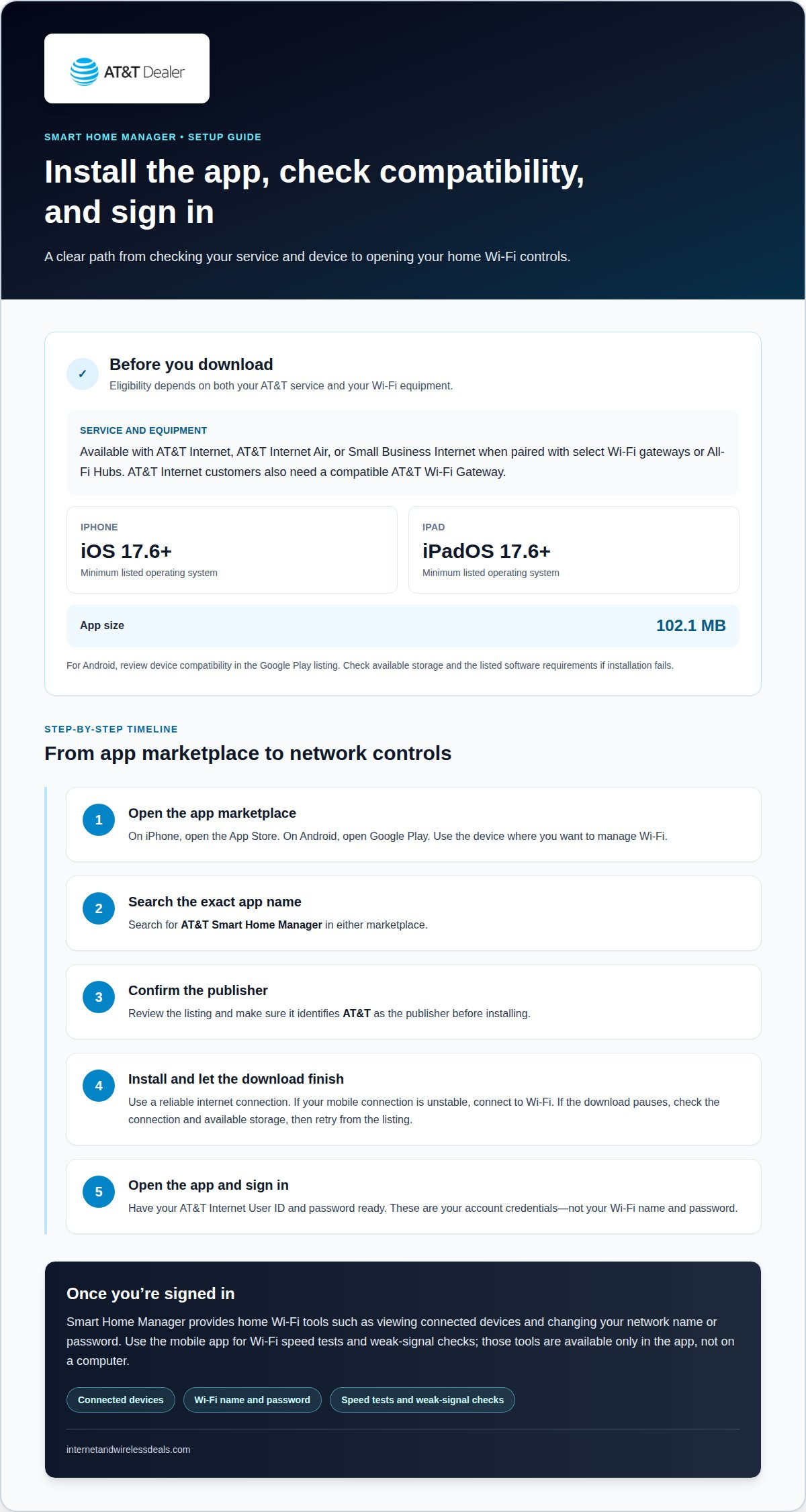
On iPhone, the app requires iOS 17.6 or later. On iPad, it requires iPadOS 17.6 or later. The app is 102.1 MB. These details help you check device compatibility and available storage before downloading. Smart Home Manager can guide you through equipment setup, but downloading the app doesn’t affect an AT&T installation or repair appointment. Customers can also use its Virtual Assistant for troubleshooting at any time of day.
What privacy and security settings does Smart Home Manager provide? The app encrypts data in transit, but may collect app information, performance data, and device or other IDs, and may share app information and performance data with third parties. Users can request deletion of collected data. These privacy details describe data handling, not controls for managing Wi-Fi devices.
Think of Smart Home Manager as a home-network management tool. Use it to update your Wi-Fi password or follow guided steps when replacing internet equipment. It can also help identify the devices connected to your network. Its features are limited to home Wi-Fi, so it isn’t a universal controller for every connected product in your home.
Wi-Fi network and device management
Smart Home Manager gives you tools to organize your home Wi-Fi. View or change the network name and password when you need to refresh access, such as after sharing the old password widely. You can also manage your network on a computer. Use the mobile app for speed tests and weak-signal checks, which are available only there.
Set up guest Wi-Fi to separate visitors’ devices from your main network. Give the guest network its own name and password, different from your primary Wi-Fi details. Devices on AT&T guest Wi-Fi can’t share files or printers with devices on your main network. This separation lets visitors access the internet without accessing shared household files or printers.
For household routines, create profiles for people using your network. Smart Home Manager lets you set time limits or apply content filters to people on the network. For example, use a profile to manage when someone’s network access is available. These controls organize access through Wi-Fi and don’t extend beyond the home network.
Choose the right tool for the task. Use a computer to manage the network, or open the mobile app to test Wi-Fi speed or check for weak signals. If a room has a weak signal, run the mobile check there, then consider whether placement or coverage needs attention. AT&T offers Extended Wi-Fi Coverage for an additional monthly charge. Smart Home Manager features are limited to home Wi-Fi.
If persistent coverage gaps have you reconsidering your household connection, review internet availability as a possible next step.
Download AT&T Smart Home Manager for iPhone or Android
On the device where you want to manage Wi-Fi, open its app marketplace and search for “AT&T Smart Home Manager.” Check the app name and publisher before installing to avoid downloading an unrelated app with a similar title.
- On iPhone, open the App Store and search for AT&T Smart Home Manager.
- On Android, open Google Play and search for the same app name.
- Review the listing and confirm it identifies AT&T as the publisher.
- Tap the install control, then wait for the download to finish.
For iPhone or iPad, compare your device’s operating system with the app’s compatibility information in the App Store listing. If installation fails, check the listed software requirements and available storage. On Android, review the Google Play listing’s device compatibility details. These checks can help identify whether the issue involves your device, storage, or operating system.
Use a reliable internet connection during the download. If your mobile connection is unstable, connect your phone to Wi-Fi before installing. Keep the marketplace open until installation finishes. If the download pauses, check the connection and available storage, then retry from the app listing.
After installation, locate the AT&T Smart Home Manager icon and open it. Have your AT&T Internet User ID and password ready to sign in. The app needs access to the appropriate AT&T home network to show its management tools. To set it up on both an iPhone and an Android phone, repeat the marketplace steps on each device.
Choose the mobile app when you need features such as Wi-Fi speed tests or weak-signal checks. Those tools are available only in the mobile app, so a computer won’t provide them. Once the app opens, sign in to access the network controls.
Sign in to Smart Home Manager with your AT&T account
Sign in to Smart Home Manager with your AT&T Internet User ID and password. These are your account credentials, not your Wi-Fi network name and password. Keep them distinct: your account details open the app, while your Wi-Fi details connect phones, computers, and other devices to your network.
Follow this sequence in the installed app:
- Open AT&T Smart Home Manager on your phone or tablet.
- Choose the sign-in option shown on the screen.
- Enter your AT&T Internet User ID and password in their respective fields.
- Review the entries, then submit them to continue.
Check each field before submitting. A Wi-Fi password won’t replace your AT&T account password, and a network name isn’t an account ID. If you manage several AT&T accounts, use the Internet User ID associated with the home network you want to manage.
If sign-in fails, check the spelling and make sure each credential is in the correct field. Look for accidental spaces or typing errors, especially if you entered the details manually. If you use a password manager, confirm it filled in your AT&T account password rather than a saved Wi-Fi password. Then try again.
Once signed in, use the app’s available controls for the home network connected to your AT&T Internet account. Open the network controls to manage Wi-Fi details, or review connected devices to see what’s using the network. Your account credentials identify the internet account; they don’t automatically change its Wi-Fi name or password.
For a straightforward setup, sign in on the device where you installed the app and have your AT&T Internet User ID ready. If another household member uses the app, make sure they enter the correct account credentials rather than relying on Wi-Fi details posted around the home. Use the Internet User ID and password tied to the network you want to manage.
Internet and Wireless Deals: AT&T Fiber Internet
Internet and Wireless Deals helps you explore AT&T connectivity options after managing your home Wi-Fi. If you’re considering a service change, compare AT&T Fiber Internet and AT&T Internet Air based on your household’s internet needs and availability. You can also explore AT&T Wireless Plans or 5G Smartphones for mobile connectivity.
Turn to Internet and Wireless Deals when you’re ready to look beyond app settings and consider your connection options. The site lets visitors check availability and compare plans, helping you identify services relevant to your needs. Smart Home Manager supports management of an eligible home network; choosing an internet service is a separate decision.
For information about AT&T connectivity options, visit Internet and Wireless Deals.
Choose your next connectivity step
Use your home-network experience to decide what you need from your broader connection. Smart Home Manager app setup with AT&T handles network management, while your internet plan provides the service behind your home Wi-Fi. If your needs have changed, consider whether you’re looking for household internet access, wireless service, or both.
Internet and Wireless Deals offers AT&T Fiber Internet, AT&T Internet Air, and AT&T Wireless Plans. Explore these options if you’re considering a new connection or updating your current setup. Check availability and compare plans to find an option suited to your needs.
Take a moment to identify what you want to improve, then explore the relevant AT&T options. For help considering your next step, contact Internet and Wireless Deals. Keep building a setup that works for the way you connect every day.
Frequently Asked Questions
What is the AT&T Smart Home Manager app and what services does it support?
AT&T Smart Home Manager is an app for managing a home Wi-Fi network and connected devices. It supports AT&T Internet, Internet Air, and Small Business Internet with select Wi-Fi gateways or All-Fi Hubs. Use it to review network devices or manage access profiles. Its features apply to home Wi-Fi, not every function of each connected smart device.
How do I set up AT&T Wi-Fi and connect a gateway using Smart Home Manager?
Open Smart Home Manager and follow its guided setup prompts for new internet service or replacement equipment. The app provides step-by-step instructions, so keep the gateway or All-Fi Hub nearby and follow the displayed actions in sequence. When replacing equipment, use the app’s replacement instructions rather than treating it as a new service activation.
How do I add devices and manage connected devices in Smart Home Manager?
Connect a device to your home Wi-Fi using the network name and password, then view connected devices in Smart Home Manager. For example, connect a new tablet through its Wi-Fi settings and check whether it appears in the device list. Profiles, time limits, and content filters help organize access for people using the network; they aren’t a universal controller for device settings.
Is AT&T Smart Home Manager free, and which AT&T plans or gateways are compatible?
Eligibility is tied to service and equipment: AT&T Internet, AT&T Internet Air, or Small Business Internet must use select Wi-Fi gateways or All-Fi Hubs. The app’s compatibility details don’t establish a separate app price here. For example, having an AT&T account alone doesn’t establish gateway compatibility; the service and equipment combination matters for access.
What should I do if Smart Home Manager cannot find my gateway or Wi-Fi network?
First, check that your phone is near the gateway and can see the home Wi-Fi network in its Wi-Fi settings. Then sign in with the AT&T Internet User ID tied to that service, not the Wi-Fi password. Reopen the app and review its setup prompts. If the issue persists, use the app’s Virtual Assistant for troubleshooting.


