

A physical SIM’s size doesn’t determine whether you can transfer it to eSIM on AT&T; your device must support eSIM and have an active wireless plan. Dial *#06# and look for an EID number to check your phone’s eSIM capability. If you keep using a physical SIM, its card size must also fit your device.
Changing SIM types can feel like a small step with a lot riding on it: your number and mobile data need to work on the right device. Before you transfer a physical SIM to eSIM with AT&T, check that your phone is compatible and know what to try if data doesn’t connect afterward.
This guide explains how to check eSIM support, how physical SIM card sizes differ, and what to do if mobile data or MMS stops working after a transfer. Welcome to Internet and Wireless Deals, where we help you use these steps to decide whether eSIM suits your phone or whether keeping a physical SIM is more practical.
Key Takeaways
- Dial *#06# and look for an EID to check whether your device supports eSIM; a physical SIM kit comes in three card sizes.
- If mobile data or MMS stops working after a SIM swap, check the APN and MMS data settings.
- Understand what to consider when asking whether a SIM conversion affects your charges.
- Learn which connection and activation steps can affect how long eSIM setup takes.
SIM compatibility and matching card sizes
Start with your phone, not the plastic card. Dial *#06# on the device you want to use. An EID displayed means the device supports eSIM. eSIM support still depends on the exact model. AT&T says iPhones released in 2018 or later commonly support eSIM. That general range doesn’t replace checking your iPhone model. Your device also needs an active wireless plan for eSIM service.
If you keep using a physical SIM, its size must match your phone’s tray. An AT&T physical SIM kit comes with three sizes for different SIM trays. Match the card to the tray and don’t force it into the slot, since a poorly seated card may not work. Switching to eSIM removes the removable card, but your phone must still support eSIM. A physical SIM’s size does not indicate whether the phone is eSIM-compatible.
Before transferring service, check the device and account requirements:
- Look for an EID on the device that will receive the eSIM.
- For a device-to-device transfer, make sure both devices are compatible.
- Turn off Wireless Account Lock before switching SIMs.
- For AT&T’s Bring your own device process, connect both devices to Wi-Fi. Downloading and activating an eSIM requires internet access.
- Have the account owner or a retail authorized user activate the new SIM. AT&T requires a one-time PIN to complete an eSIM transfer.
- If you use a physical SIM on AT&T’s 5G network, the device needs a 5G SIM.
Traveling in North America? You can activate an AT&T eSIM for the USA, Canada, or Mexico from your phone, without visiting a store or using a physical SIM. For an existing-line transfer, check device compatibility, connect to the internet, and have the required one-time PIN ready.
Troubleshooting data service after a SIM swap
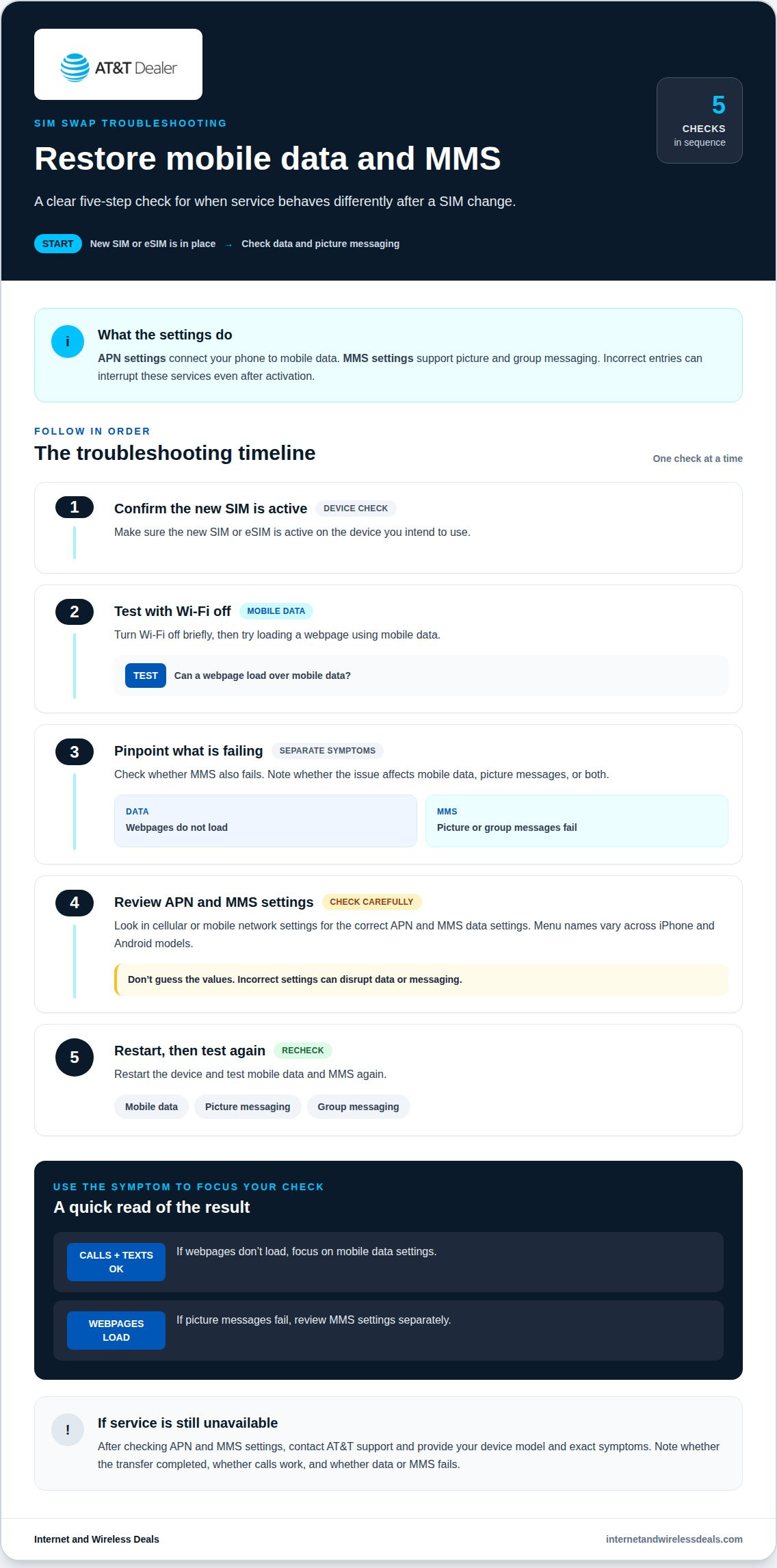
If calls work but mobile data doesn’t, check your data settings first. After a SIM change, AT&T customers may need the correct APN and MMS settings. APN settings connect your phone to mobile data; MMS settings support picture and group messaging. Incorrect entries can interrupt these services even after activation.
On the device with the new SIM, try these steps:
- Confirm the new SIM or eSIM is active on the intended device.
- Turn Wi-Fi off briefly, then test a webpage using mobile data.
- Check whether MMS also fails. Note whether the issue affects data, picture messages, or both.
- Review the phone’s cellular settings for the correct APN and MMS data settings.
- Restart the device, then test mobile data and MMS again.
Menu names vary across iPhone and Android models. Look for APN details in cellular or mobile network settings, and don’t guess the values. Incorrect settings can disrupt data or messaging. If calls and texts work but webpages don’t load, focus on mobile data settings. If webpages load but picture messages fail, review MMS settings separately.
What should I do if AT&T eSIM activation fails? Confirm the device supports eSIM and has an internet connection, then retry activation with the required one-time PIN. For help activating a new SIM, call 800.331.0500; AT&T Prepaid customers can call 800.901.9878 from another phone for switching or account help.
Will converting to eSIM affect my AT&T number, plan, or service? The transfer moves wireless service from the old SIM setup to the new one, and you still need an active wireless plan. Deleting an eSIM while resetting an old iPhone does not cancel the plan, so deleting it alone is not a plan-cancellation step.
If service is still unavailable after you check APN and MMS settings, contact AT&T support and provide your device model and exact symptoms. Note whether the transfer completed, whether calls work, and whether data or MMS fails. These details can help narrow down the issue without repeating steps that already worked.
Does AT&T charge a fee to convert a physical SIM to eSIM?
Whether a charge applies depends on the transaction. Changing SIM format, replacing a physical SIM, and changing a wireless plan are separate actions, not one purchase. Converting your line to eSIM does not by itself mean you’re buying a phone or changing plans.
Before you start, identify what you need: move existing service to eSIM, replace a damaged SIM, or activate service on another device. Each can involve different account steps. You’ll also need an eSIM-compatible phone and an active wireless plan. The physical card’s size does not determine whether a fee applies.
Keep the transaction clear with this quick checklist:
- Confirm whether you’re converting your current line or activating a replacement SIM.
- Check whether the process includes a plan change or a device purchase.
- Review the transaction details before approving an account change.
- Keep the one-time PIN ready for an eSIM transfer.
- Make sure the account owner or a retail authorized user handles new SIM activation.
Knowing what each account action covers can help you understand a transaction. Replacing a physical card is different from transferring service to an eSIM on a compatible phone. Moving service to another device means transferring the line, not automatically choosing a new plan. Review what each listed charge relates to before completing a transaction.
After conversion, check that the intended device can place calls and use mobile data. If data fails, review APN and MMS settings. If eSIM setup doesn’t complete, confirm that the device has internet access, then retry the activation steps. Keep a record of the transaction with your account details to distinguish a SIM-related charge from a separate device or plan transaction.
How long does AT&T eSIM activation take?
AT&T eSIM activation doesn’t take the same amount of time for every transfer. It depends on downloading the eSIM, internet access, and activating the line. Transfers between compatible devices also require a one-time PIN. Keep both devices connected to Wi-Fi during AT&T’s Bring your own device process. The new device needs internet access to download and activate its eSIM.
Prepare before you begin: confirm that the receiving device supports eSIM and has a working internet connection. Have the one-time PIN ready, and follow the activation prompts without removing the old eSIM early. Moving service usually means deactivating the eSIM on the old device and activating it on the new one. Then test calls and mobile data on the receiving device.
For an AT&T iPhone, activation may use a QR code provided by AT&T or an account sign-in prompt. Follow the option shown on the device. If you’re using AT&T Prepaid, buying an eSIM through its website triggers a notification on the device to download it. New Prepaid customers ordering an eSIM activation card receive it within 3-7 business days. That delivery period is for the card, not a stated eSIM activation duration.
Use this checklist to avoid pauses during setup:
- Connect the devices to Wi-Fi before transferring through Bring your own device.
- Have the one-time PIN and account sign-in details ready.
- Keep the old device available until the new eSIM activates.
- After activation, test calls, mobile data, and messaging.
Travelers visiting North America can activate an AT&T eSIM for the USA, Canada, or Mexico from their phone, without visiting a store or using a physical SIM. The time still depends on completing the download and activation steps with internet access. For help choosing a connected setup, explore connectivity options.
Internet and Wireless Deals: AT&T Fiber Internet
Internet and Wireless Deals helps you explore AT&T connectivity options after sorting out your SIM transfer. If your next step is choosing home internet, review AT&T Fiber Internet or AT&T Internet Air. For mobile service, compare AT&T Wireless Plans and explore 5G Smartphones that fit your needs.
Use the site to compare plans and check availability for your household’s connection needs. A SIM conversion changes mobile service on a compatible device; home internet is a separate choice for streaming, browsing, and other connected routines. Keeping the two needs distinct can clarify your next decision.
Visit internetandwirelessdeals.com to explore AT&T options.
Make Your Next Connection Decision
Once your phone is set up, consider how it fits your wider connectivity needs. Transferring your physical SIM to eSIM with AT&T is a mobile setup decision. Home internet is a separate choice based on how you use your connection at home. Considering them separately can help you focus on the option that suits your next step.
Internet and Wireless Deals offers AT&T Fiber Internet, AT&T Wireless Plans, and AT&T Internet Air. Explore these options if you’re considering home internet or wireless service alongside your device setup. Compare plans and check availability to find an option that fits your needs.
Explore AT&T options with Internet and Wireless Deals, and take your next step with confidence.
Frequently Asked Questions
How do I transfer an AT&T physical SIM to an eSIM?
To transfer a physical SIM to eSIM on AT&T, confirm that the receiving phone supports eSIM and has internet access. On an iPhone, activation may use an AT&T-provided QR code or an account sign-in prompt. Complete the transfer with the required one-time PIN, then test calls and mobile data on the new device before putting the old phone away.
Which phones support AT&T eSIM conversion?
Support depends on the exact phone model. AT&T says iPhones released in 2018 or later commonly support eSIM, but that doesn’t establish compatibility for every model. On the phone you plan to use, dial *#06# and look for an EID. That identifier indicates eSIM capability. The device also needs an active wireless plan to use eSIM service.
What information is needed to transfer an AT&T SIM to eSIM?
Have access to the AT&T account, an internet connection, and the one-time PIN required for the transfer. Both devices must be compatible for a device-to-device move. AT&T’s Bring your own device process uses Wi-Fi on both phones. If you’re activating an iPhone by QR code, have the code provided by AT&T ready. The account owner or a retail authorized user must activate a new SIM.
Can I transfer an AT&T eSIM to a new phone or back to a physical SIM?
You can transfer an AT&T eSIM to another device if both phones are compatible. The move typically deactivates the profile on the old phone and activates it on the new one. To switch back to a physical SIM, the line needs a physical SIM activated for use. Only the account owner or a retail authorized user can activate a new SIM.
How do I convert an AT&T physical SIM to eSIM while traveling or outside the United States?
Visitors to North America can activate an AT&T eSIM for the USA, Canada, or Mexico from their phone, without visiting a store or using a physical SIM. Make sure the device supports eSIM and has internet access. An existing-line transfer also requires the one-time PIN.


