

A fast router can still be the wrong router for fiber. The fiber internet router compatibility requirements depend on the entire connection path, not just the speed printed on the box. The key question is whether the fiber line connects to your router directly or whether provider equipment sits between them.
That distinction matters. Fiber setups use an Optical Network Terminal (ONT) to convert the fiber signal into Ethernet for a router. From there, the router’s WAN port, Wi-Fi capabilities, wired ports, and coverage affect how well your home can use the plan. A device rated for gigabit service may bottleneck a multi-gigabit connection, while a powerful router won’t automatically solve weak coverage across a larger home.
This guide explains which equipment and ports to check, how provider gateways fit alongside personal routers, and when a mesh system may help. You’ll learn why Wi-Fi 6 is a baseline recommendation for gigabit plans and why Wi-Fi 7 is preferred for multi-gigabit service. You’ll also see what to consider with AT&T Fiber before choosing a plan or replacing equipment.
Key Takeaways
- Compare the plan’s speed with your router’s WAN and Ethernet port capabilities.
- Record your router’s model and hardware revision, then check its documentation for supported connection types and features.
- Choose between a provider gateway, a personal router alongside provider equipment, or mesh Wi-Fi based on the control and coverage your home needs.
- Review the setup guidance for your specific AT&T Fiber equipment before configuring a personal router.
- Check equipment readiness, then use the online availability tool to explore AT&T Fiber at your address.
Fiber Internet Router Compatibility Requirements: What the Connection Needs
Fiber internet router compatibility requirements aren’t about finding a router with a special fiber socket. They’re about matching the provider’s equipment and handoff to your router’s connection type and your home network’s needs. Fiber service reaches your premises first; equipment then converts and routes the connection before Wi-Fi carries it to your devices. A router can have capable Wi-Fi and still be unsuitable for the provider’s connection or the speeds you want to use.
Quotable definition: A fiber connection describes how internet service reaches your home; a fiber-compatible router can connect to the provider’s handoff and deliver the wired and wireless networking your household needs.
Here’s the basic equipment map. Some functions may be combined in one device, and the precise setup can vary:
Internet service → Fiber line → ONT or provider gateway → Router → Access point or built-in Wi-Fi → Your devices
The fiber line carries information as light, a process explained in this overview of fiber-optic communication. Home networking equipment then turns the incoming service into connections your devices can use. An access point provides Wi-Fi. It may be built into a gateway or router, or it may be a separate unit.
Does a fiber internet connection plug straight into a router?
Usually, not into a typical standalone router. Many installations use an Optical Network Terminal (ONT) or provider gateway between the fiber line and the router. The ONT converts the optical signal into a network connection, commonly Ethernet. A separate router typically connects to that Ethernet handoff, not to the fiber strand itself.
Not every home has the same arrangement. An ONT may be a separate box, while some equipment combines functions. The provider’s equipment and installation determine where the router connects and whether another device is required. Identify the equipment already in place before buying or reconnecting a router.
What do ONT, gateway, and router mean?
An ONT converts the signal arriving over fiber into a form that network equipment can use. A gateway often combines router functions with other capabilities, such as Wi-Fi, in one unit. A separate router manages the home network as a distinct device. It may provide its own Wi-Fi or connect to separate access points for wireless coverage.
These names describe functions, not always separate boxes. A gateway can act as both router and access point, while a setup with separate devices divides those roles. Knowing which device does what helps you identify what a new router would replace, what it would work alongside, and which connection it needs. Compatibility starts with that equipment map, not a “fiber” label on a router package.
How Fiber Router Compatibility Works: Ports, Ethernet, and Wi-Fi
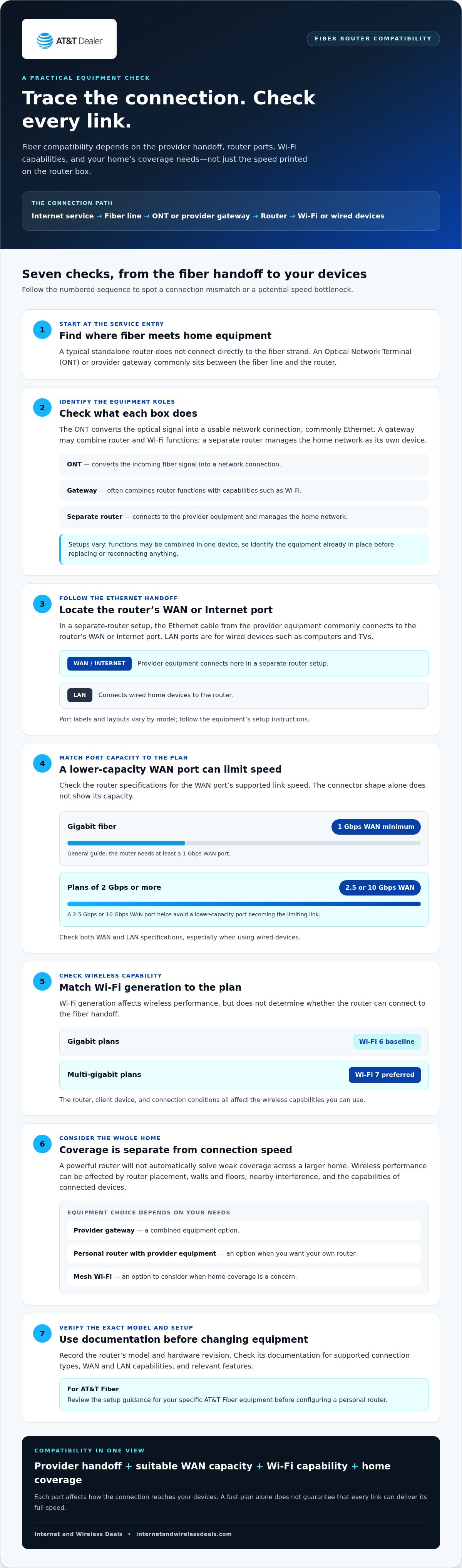
Follow the connection step by step: fiber enters the premises, an ONT or gateway provides a usable network handoff, and Ethernet may carry that connection to a separate router. The router then distributes traffic through wired ports and Wi-Fi. Each link has its own capacity, so a fast fiber plan doesn’t guarantee that every device will receive the plan’s full speed.
Router compatibility depends on the service handoff and supported connection, not Wi-Fi branding alone. For a separate-router setup, the router typically needs an Ethernet WAN or Internet port that connects to the provider’s equipment. Port capacity, Wi-Fi generation, and the capabilities of your devices all affect performance. The IEEE 802 Standards for Ethernet and Wi-Fi cover the standards behind these wired and wireless connections.
Which router ports matter for fiber internet?
Look at the back of the router for a port labeled WAN or Internet. It’s usually separate from the LAN ports used to connect computers, TVs, or other wired devices. In a separate-router setup, this is where the Ethernet cable from the provider equipment commonly connects. Follow the setup instructions for your equipment, since labels and layouts vary by model.
Next, check the WAN port’s supported link speed in the router specifications. A port can bottleneck a plan if its capacity is lower than the incoming service. As a general guide, a 1 Gbps WAN port is the minimum for gigabit fiber; plans of 2 Gbps or more call for a 2.5 Gbps or 10 Gbps WAN port to avoid a lower-capacity port becoming the limiting link. Verify the exact capability for your router’s model and hardware revision.
Don’t decide by connector shape alone. Ethernet ports can look alike while supporting different speeds, and a WAN label identifies the port’s role, not its capacity. Check the manufacturer’s specifications for both WAN and LAN ports, especially if you’ll connect devices by cable to test or use higher speeds.
How do Wi-Fi standards and coverage affect compatibility?
Wi-Fi generation affects wireless performance, not whether the router can connect to the fiber handoff. Wi-Fi 6 is the baseline recommendation for gigabit plans, while Wi-Fi 7 is preferred for multi-gigabit plans. Those capabilities matter only when the router, client device, and connection conditions support them. Ethernet and Wi-Fi are related networking technologies, but they describe different parts of the connection.
Real-world Wi-Fi also depends on router placement, walls and floors, nearby interference, and the capabilities of each phone, laptop, or streaming device. A newer wireless standard won’t eliminate a weak signal in a distant room, and an older device won’t use the newest Wi-Fi features. Compare a wired connection with Wi-Fi performance to see whether the limitation is the router’s connection or wireless coverage. For more context on plan speeds versus the performance devices experience, use the article’s fiber internet speeds guide.
If you’re evaluating AT&T Fiber, you can check AT&T internet availability as you plan the service and home network that fit your needs.
Provider Gateway, Personal Router, or Mesh Wi-Fi: Compare Your Options
There’s no single setup that suits every home. The right choice depends on how much control you want, how far Wi-Fi needs to reach, and whether extra equipment solves a real coverage or networking need. Compare the trade-offs before adding hardware. These options can overlap: a mesh system may connect to a provider gateway, and a personal router may operate behind provider equipment.
| Setup | Setup complexity | Control and coverage | Potential duplication |
|---|---|---|---|
| Provider gateway | Usually simplest | Combines networking features; coverage depends on the device and home | Extra router may duplicate routing or Wi-Fi |
| Personal router with provider equipment | May require configuration | Can offer different settings or networking features | Both devices may provide overlapping functions |
| Mesh Wi-Fi with provider equipment | Requires placing and configuring mesh units | Designed to extend Wi-Fi coverage across more areas | Gateway Wi-Fi may overlap with the mesh network |
When is the provider gateway enough?
A provider gateway may be enough if its built-in networking features meet your household’s needs and Wi-Fi reaches the places where you use devices. Before adding equipment, test coverage in work areas, bedrooms, and other everyday spaces. Signal strength can vary with gateway placement, home layout and construction, and connected devices. Equipment and features can differ by plan and setup, so review the current details rather than assuming a particular gateway is included.
When might a personal router or mesh system help?
A personal router may suit households that want different network settings or features. Mesh Wi-Fi may help spread coverage across a larger or more challenging layout. Mesh nodes extend wireless coverage; they don’t replace the provider’s fiber handoff. If a mesh system connects to a gateway, you may be able to adjust the gateway’s Wi-Fi or routing settings, depending on the equipment and instructions.
Using a personal router alongside a gateway can require extra configuration. Some equipment supports bridge mode or IP Passthrough, but the terms don’t guarantee identical behavior across providers and models. Follow the current provider and device instructions before changing settings. Consider whether both devices will route traffic or broadcast Wi-Fi. Overlapping functions can make the network more complicated without improving it.
Quick comparison: Choose the gateway for simplicity, a personal router for added network control, or mesh Wi-Fi when broader wireless coverage is the priority. You can combine options, but first check the fiber internet router compatibility requirements for your handoff and equipment. Aim for a setup that solves a clear need without adding duplicate hardware or unnecessary configuration.
How to Check Fiber Internet Router Compatibility Before You Switch
A quick check can prevent an equipment mismatch later. Use this checklist to compare your current setup with the fiber service you’re considering. Start with the connection itself, then decide whether optional Wi-Fi upgrades would improve your household’s experience.
- Identify the equipment in your current setup. Note whether you have a separate ONT, a provider gateway, or combined equipment. Write down how the existing router connects and whether it’s your own device or part of the provider’s setup. This gives you a clear starting point instead of relying on memory or assumptions.
- Record the router’s exact model and hardware revision. Look on the device label, in its management app, or in its settings. Revisions of a similar model can have different capabilities, so capture the complete model name and revision before looking up specifications.
- Inspect the ports and their capabilities. Find the WAN or Internet port and check its supported Ethernet speed in the manufacturer’s documentation. Then review the LAN ports if you plan to connect devices by cable. A suitable Ethernet connection is essential for a separate-router setup; a faster Wi-Fi label can’t make up for a port that limits the wired link.
- Compare the specifications with the plan and your household’s needs. Check the router’s supported Ethernet speeds and whether its wireless capabilities fit the devices you use. Separate essential checks from possible upgrades: the correct provider handoff and adequate WAN port determine the connection, while newer Wi-Fi or mesh coverage may be worthwhile improvements rather than requirements for every household.
- Review setup guidance for the provider equipment. Check how personal networking equipment should connect and whether the configuration steps apply to your gateway and router models. Don’t assume bridge mode or IP Passthrough is available or behaves the same way across every setup. Follow the instructions for the equipment you’ll use.
What information should you check on your router?
Use the model number and hardware revision to find the manufacturer’s support page or manual. Look for WAN and LAN port speeds, supported Ethernet capabilities, and Wi-Fi standards. Treat advertising language and headline wireless speeds as a starting point, not proof of performance. They don’t establish the WAN port’s capacity or what your devices can achieve in your home.
What should you verify about the fiber setup?
Identify whether the installation uses a separate ONT, gateway, or combined equipment, then review the provider’s directions for adding a personal router. Configuration options depend on the provider and model. Confirm the required connection and settings before changing your network, especially if you plan to keep the gateway in place.
Once your equipment checks are complete, compare the plan’s advertised speed with the performance your network can deliver. For AT&T Fiber, check internet availability at your address as you evaluate your next connection.
AT&T Fiber Router Setup: Understand the Equipment Path and Next Step
Once you’ve checked your router’s ports and wireless capabilities, connect those findings to the service setup. The practical order is to check whether AT&T Fiber is available at your address, review the equipment and configuration guidance, then plan your home network around the handoff and coverage you need. This helps keep equipment assumptions from steering your service decision.
Keep the roles separate. Provider equipment handles the fiber connection; your router or mesh system manages the home network and Wi-Fi. Internet and Wireless Deals facilitates AT&T service sign-ups and provides an online tool to check availability.
How should readers think about a personal router with AT&T Fiber?
Think of the provider’s fiber equipment and your Wi-Fi equipment as different parts of the setup. AT&T Fiber setups require the AT&T gateway to remain in the connection path; a personal router connects behind it rather than replacing it. The setup uses IP Passthrough. Follow the current AT&T and equipment instructions for your service and devices.
Don’t assume every gateway has the same menus or configuration options. Identify your equipment and follow the current official instructions before changing settings. A setting’s name doesn’t guarantee identical behavior across models. Fiber internet router compatibility requirements depend on both the provider’s handoff and the supported configuration, not just your router’s Wi-Fi capabilities.
What is the next step after checking router requirements?
With the equipment path clear, check address availability before settling on a plan or network layout. Compare the available AT&T Fiber plan details with your household’s needs, then decide whether the gateway’s Wi-Fi is enough or your own router or mesh system is a better fit. The AT&T Fiber deals guide can help you consider plan options alongside your equipment checklist.
Internet and Wireless Deals provides an online tool to check AT&T internet availability. Use it to explore whether AT&T Fiber is available at your address, then plan your home network around the equipment guidance and the devices you use.
Check AT&T Fiber availability at your address and take the next step toward choosing a service setup that fits your home.
Make Your Next Fiber Move With Confidence
Your next step isn’t necessarily buying new hardware. Use what you’ve learned about fiber internet router compatibility requirements to decide whether your current setup can support the service you want. Build your network plan around your home and connected devices, and focus on the connection that fits rather than upgrades you may not need.
Ready to explore AT&T Fiber? Internet and Wireless Deals is an authorized AT&T retailer and independent third-party marketing partner, with an online tool to check AT&T internet availability at your address.
Check AT&T Fiber availability at your address and take your next step toward a connected home.
Frequently Asked Questions
Do I need a special router for fiber internet?
No. You generally need a router that can connect to the network handoff at your home, not a device marketed as “fiber-only.” If provider equipment supplies Ethernet to a separate router, for example, that router needs a suitable Ethernet WAN connection. Fiber service equipment handles the incoming optical signal, while your router manages the home network. Focus on connection support and household needs rather than a label.
Can I use my own router with fiber internet?
Often, yes, but the provider’s equipment and setup rules determine how it connects. Some installations allow a personal router to connect downstream from a provider gateway, while others require specific configuration. Before switching, review the current instructions for your service and equipment, then confirm that your router can handle the connection. Keep the provider’s equipment available until the new setup is working as expected.
Does a fiber router need an Ethernet WAN port?
A separate router commonly needs an Ethernet WAN or Internet port to receive the connection from provider equipment. Check the router’s manual or support page for that port’s supported speed rather than relying on its appearance. The capacity should suit the service tier you intend to use. If the router has no WAN port, check whether its manufacturer supports another mode of operation for your specific setup before connecting it.
Can I connect a mesh Wi-Fi system to fiber internet?
Yes, a mesh system can work with fiber when its main unit supports the required connection and is configured to work with the provider equipment. Before setup, check the primary unit’s WAN capability and the manufacturer’s gateway compatibility instructions. Place additional nodes where they can maintain a reliable connection to the main unit. Mesh can extend wireless coverage, but it won’t correct a slow wired connection entering the system.
Will my old router slow down my fiber internet?
It can. A router may limit performance if its WAN port, Wi-Fi capabilities, or condition can’t keep up with the service and devices using it. To narrow down the cause, test a computer connected by Ethernet, then compare that result with Wi-Fi in the same area. If wired performance is strong but Wi-Fi is weak, placement, interference, or device capability may be the issue rather than the fiber connection.
Does AT&T Fiber require its gateway?
AT&T Fiber setups require the AT&T gateway for authentication, so a personal router generally works alongside the gateway rather than replacing it. Depending on the equipment and setup, IP Passthrough may be used to connect a personal router. Follow current AT&T instructions for your service and equipment before changing settings, since configuration details can vary.
How can I check whether my router is compatible with fiber internet?
Start with the fiber internet router compatibility requirements for your setup: identify the provider handoff, then look up your router’s exact model and hardware revision. Check its WAN port and supported connection modes in the manufacturer’s documentation, and compare them with the service tier you’re considering. Next, review provider instructions for personal equipment. Treat newer Wi-Fi features as an upgrade decision, not proof of basic compatibility.


