

What if the safest way to get fiber internet working is to leave the fiber connection alone? A reliable optical network terminal setup fiber internet connection starts with knowing which equipment you can connect and which parts should stay untouched. It’s easy to mistake the ONT for your Wi-Fi gateway, or to worry that a warning light means the fiber line is damaged. Check the equipment before moving any cables.
This guide explains how to identify the ONT, gateway, and key cables, then connect user-installable equipment in the right order. You’ll also learn which status checks are safe and when to use your internet provider’s support channel instead of adjusting the fiber line yourself.
We’ll follow the signal path from the fiber connection to the ONT, then to your gateway and home devices. Along the way, you’ll learn what the ONT does, how to identify common connection points, and what to do if the internet isn’t working. Connect the right equipment without guessing at ports or disturbing the fiber connection.
Key Takeaways
- Follow the signal path to distinguish the ONT from your Wi-Fi gateway and identify the cables used for setup.
- Connect user equipment in the right order, while leaving provider-owned fiber equipment and the fiber line in place.
- An unfamiliar ONT light or an internet outage doesn’t automatically mean the fiber line is damaged.
- Check light colors and patterns in the documentation for your exact equipment model before troubleshooting further.
- Confirm service activation, gateway status, and a successful device test. Manage Wi-Fi settings through the gateway or router.
Optical network terminal setup: what the ONT does in a fiber connection
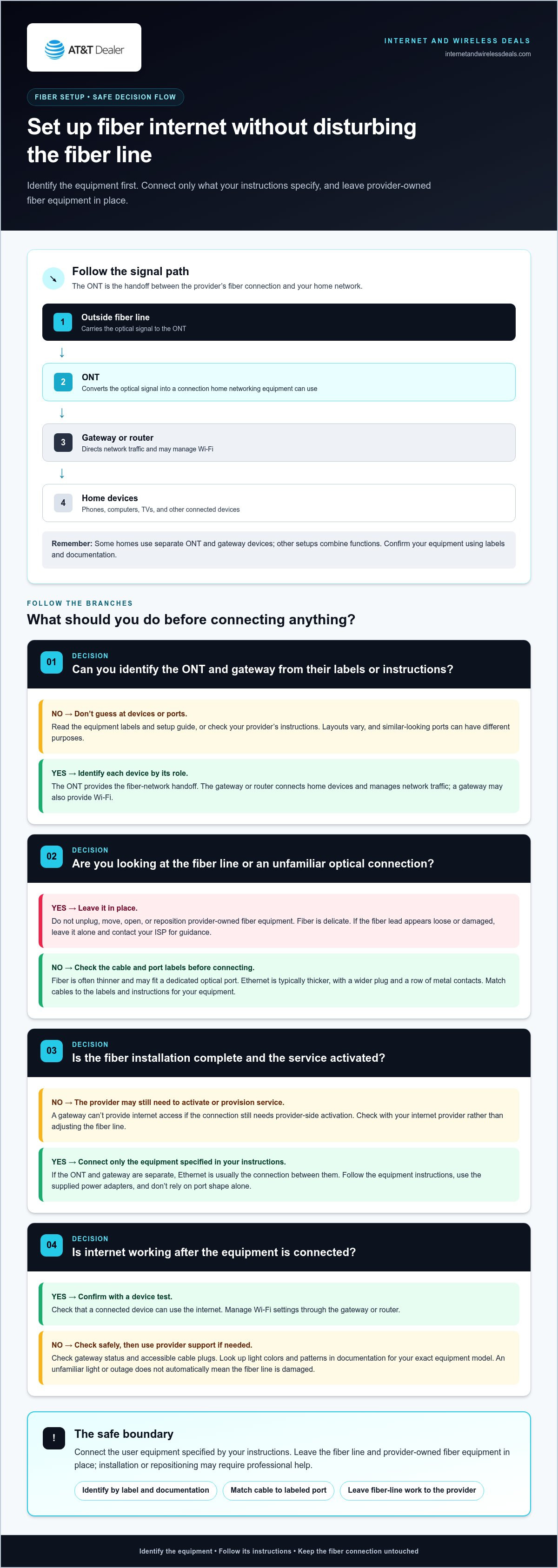
An optical network terminal (ONT) converts the provider’s optical signal into a connection your home networking equipment can use, usually through an Ethernet cable. In a typical optical network terminal setup fiber internet follows this path: the outside fiber line reaches the ONT, the ONT passes the connection to a gateway or router, and that device connects phones, computers, TVs, and other devices.
What does an ONT do for fiber internet?
Fiber carries information as pulses of light. The ONT converts those optical signals into electrical signals that home networking equipment can use, and converts outgoing data for transmission back through the fiber network. It serves as the handoff between the provider’s fiber connection and your home network. For a technical overview, see the Optical Network Terminal reference.
In short: The ONT translates the fiber connection into a form your home network can use. The router directs traffic between your devices and the internet. This distinction matters during setup: a router can manage Wi-Fi and connected devices, but it doesn’t automatically replace the fiber handoff performed by an ONT.
ONT, gateway, and router: how are they different?
Think of the ONT as the fiber-network handoff and the router as the traffic director for your home. The router sends data to the right devices and, if it has Wi-Fi, lets them connect wirelessly. A gateway combines router functions with other networking functions, so it may be the device you use to connect devices and manage Wi-Fi.
Equipment layouts vary. Some homes have a separate ONT and gateway, while other setups combine functions in a single device. Trace the cables and read the labels rather than assuming every box has the same role. A fiber connection entering a device is a clue, but check the equipment documentation or provider instructions to identify it confidently.
Connecting home equipment is different from bringing the fiber service online. The provider may need to activate or provision the connection on its network. Installing or repositioning the outside fiber line, or provider-owned fiber equipment, may require professional installation. Don’t unplug, move, or open fiber equipment to troubleshoot. Connect only the equipment specified in your instructions between the ONT and gateway, and leave fiber-line work to the provider.
Identify your fiber ONT, gateway, and cables before setup
Before connecting anything, read the equipment labels and trace each cable visually. An ONT may be labeled “ONT” or “optical network terminal,” while a gateway or router may be identified by its name on the label or setup guide. Some installations use separate devices; others combine networking functions. Use the equipment label and documentation to identify your model and layout rather than assuming every home has the same setup.
How can you tell which device is the ONT?
Look for a device connected to the incoming fiber line and check its label. Fiber-optic cable is often thinner and more delicate than Ethernet cable, and its connector may have a protective cap or fit a dedicated optical port. Ethernet cable is typically thicker and has a wider plug with a row of metal contacts. Don’t unplug or handle an unfamiliar fiber connection during routine setup. For more background on fiber components and safe troubleshooting, consult this Fiber Optic Troubleshooting Guide.
Which ports and cables matter for a basic setup?
If the ONT and gateway are separate, Ethernet is usually the connection between them. Match the cable to the port labels and instructions for your exact equipment. Don’t rely on port shape alone: similar-looking ports can have different purposes. Use the supplied power adapter for each device and follow its instructions for connecting power.
| Item | What to look for | Typical role |
|---|---|---|
| ONT | Label referencing ONT or optical service; connected to a fiber line | Fiber-network handoff |
| Gateway/router | Device label or guide; may have Wi-Fi details | Connects home devices and manages network traffic |
| Fiber cable | Usually thin; connects to an optical port | Carries the fiber signal to the ONT |
| Ethernet cable | Typically thicker, with a wide plug and metal contacts | May connect a separate ONT to a gateway |
Use labels, the manufacturer’s instructions, and your internet provider’s setup guidance to confirm each connection. The right optical network terminal setup fiber internet approach depends on the equipment installed, so don’t guess at port names or move provider-owned fiber equipment. If you’re considering AT&T Fiber, check AT&T Fiber availability.
How to set up fiber internet through an ONT, step by step
Focus on the equipment you’re meant to connect. Follow your internet service provider’s instructions for your specific equipment, and don’t install, move, open, or reposition provider-owned fiber equipment. The optical fiber lead is delicate. If it appears loose or damaged, leave it in place and contact your ISP for guidance.
Before connecting the ONT and gateway
First, confirm that the fiber installation is complete and the service is activated. A gateway can’t provide internet access if the connection still needs provider-side activation. Place the gateway and any user-owned equipment according to the supplied instructions, with ventilation and access to suitable power. Check visible cables for damage and make sure accessible plugs are seated, but don’t bend or disconnect the fiber lead.
Connect, power up, and test the fiber connection
Use this sequence for a typical setup with a separate ONT and gateway. If your equipment combines these functions or your ISP’s instructions specify another arrangement, follow those instructions instead.
- Confirm installation and activation. Check your ISP’s setup guidance or service status before changing connections. If installation or activation isn’t complete, changing home equipment won’t finish that provider-side work.
- Inspect accessible connections. Look over the power cords and Ethernet cable. Check that plugs are secure and cables aren’t visibly damaged. Leave the fiber connection in place.
- Connect the gateway. If the ONT and gateway are separate, connect an Ethernet cable from the ONT’s Ethernet handoff to the gateway port labeled for internet or WAN, as directed by the equipment guide. Don’t select a port by shape alone.
- Power up the equipment. Use the supplied power adapters. Follow the power-up order and instructions from your ISP or equipment manufacturer. There’s no universal sequence or wait time for every model.
- Test the connection. Check the gateway’s status using its indicators or setup instructions. Connect one device near the gateway and test whether it can reach the internet. If possible, connect a computer to the gateway by Ethernet, then compare that result with Wi-Fi. This helps distinguish an internet connection issue from a wireless coverage issue.
A successful optical network terminal setup fiber internet connection depends on more than cables: service must be active, the gateway must establish its connection, and a device must be able to get online. If the gateway remains offline after these checks, avoid repeated unplugging or changes to the fiber side. Follow your ISP’s troubleshooting guidance for the next step.
ONT lights on but no internet? Troubleshoot safely
An unfamiliar ONT light or an internet outage doesn’t, by itself, prove the fiber line is damaged. Indicator colors and patterns vary by equipment, so check the manual or provider instructions for your exact model. Don’t rely on descriptions for another device or assume a particular color always means the same thing.
What should you check when the ONT appears online but browsing fails?
Start with simple checks that don’t disturb the fiber connection:
- Confirm the gateway has power and check its status using its own manual or app.
- If the ONT and gateway are separate, check that the Ethernet cable between them is seated at both ends and connected to the ports specified in the equipment instructions.
- Try a second device. If only one device can’t get online, the issue may be local to that device rather than the fiber connection.
- If possible, test a computer connected to the gateway by Ethernet. If wired access works but Wi-Fi doesn’t, focus on the gateway’s wireless connection or device coverage. If wired and wireless devices both fail, the cause may be farther upstream.
Restart equipment only if your ISP or manufacturer recommends it, and follow their instructions for the correct sequence. Avoid factory-resetting the gateway as a first step. A reset can erase settings and make setup harder. Don’t open the ONT or repeatedly disconnect power and cables, especially the fiber lead.
When does an ONT issue need ISP support?
Use your provider’s support channel if service is not activated, the connection remains offline after basic checks, or the equipment documentation points to a persistent connection problem. Fiber-line repairs, network provisioning, and faults in provider-owned equipment aren’t do-it-yourself tasks. Leave the ONT and fiber line in place while reporting the issue.
Have the ONT and gateway model information ready. Describe the indicators you see, including their colors and patterns, and list the checks you’ve completed. These details help clarify whether the issue may involve the service, gateway, cable, or Wi-Fi, without guessing what a light means.
For a careful optical network terminal setup fiber internet connection, follow the equipment-specific guidance and change only what you control. If you’re considering AT&T Fiber, check AT&T Fiber availability.
Finish your optical network terminal setup and get fiber service ready
You’re ready to wrap up when the provider connection is active, the home equipment is connected as instructed, and your devices can get online. Use this final checklist to confirm each part of your optical network terminal setup fiber internet connection without changing the ONT unnecessarily.
- Service is activated: Your provider has completed any required installation or activation.
- Equipment is connected: The cables and power connections match the instructions for your equipment.
- Gateway is online: Its status indicators or setup app report an internet connection. Check the guide for your exact model.
- A device has been tested: At least one device can access the internet. Test another device to see whether the connection works across your home network.
How do you know your fiber setup is ready?
Test near the gateway first. If available, connect a computer directly to it with Ethernet, then compare the result with a Wi-Fi test. A wired connection that works while Wi-Fi struggles may point to a wireless coverage or gateway setting issue, rather than a problem with the fiber service. Actual speeds vary with your service plan, equipment, connected devices, and home conditions. For more on factors that affect performance, read this fiber internet speed guide.
Adjust Wi-Fi settings at the gateway or router, not by changing the ONT. Keep provider-owned fiber equipment and its connections in place. If the gateway doesn’t report an internet connection or several devices can’t get online, follow your provider’s troubleshooting instructions.
What is the next step if you are considering fiber internet?
Start by finding out whether fiber service is available at your address. Use the fiber availability map guide to learn how to check coverage. Availability depends on the address, so an online check is a practical first step, not a promise that service is available everywhere.
Considering AT&T Fiber? Explore AT&T Fiber internet deals and review the information for prospective customers. Check availability for your address before making plans. With service active, equipment connected, the gateway online, and a device tested, you’ll have a clear baseline for using your fiber connection and identifying where help may be needed.
Get your fiber connection ready for what’s next
A confident optical network terminal setup fiber internet connection starts with understanding the signal path, connecting only the equipment your instructions identify, and testing the gateway with a device. ONT lights vary by model, and an unfamiliar indicator doesn’t automatically mean the fiber line is damaged. Check the equipment documentation, and leave provider-owned fiber equipment and fiber-line work to your internet provider.
Before calling setup complete, confirm that service is activated, the gateway reports an internet connection, and your devices can get online. If Wi-Fi needs adjustment, use the gateway or router settings rather than changing the ONT. Your connection experience also depends on your service plan, equipment, and home conditions.
Considering AT&T Fiber? Internet and Wireless Deals helps customers check availability and access AT&T Fiber offers. Check AT&T Fiber availability online, then explore AT&T Fiber internet deals.
Frequently Asked Questions
What is an optical network terminal for fiber internet?
An optical network terminal, or ONT, converts the optical signal carried over a fiber line into a connection your home networking equipment can use. It serves as the handoff between the provider’s fiber network and your home network. An optical network terminal setup fiber internet service may use a separate ONT and gateway, or equipment that combines functions. Check the labels and instructions for your installed equipment to identify its layout.
Can I set up an ONT myself?
You can usually connect customer-installable equipment, such as a gateway, by following the instructions for your service and equipment. The provider may need to install the ONT, connect the fiber line, or activate the service through network provisioning. Don’t open the ONT, disconnect an unfamiliar fiber cable, or try to install an outside fiber connection. Follow the instructions for your exact setup, and leave provider-owned fiber equipment in place.
How do I connect an ONT to a Wi-Fi router?
If your installation has separate devices, connect the ONT’s Ethernet handoff to the router or gateway port identified in the equipment instructions, often labeled for internet or WAN. Then connect power and follow the recommended startup order. Don’t guess based on port shape alone. Some installations combine networking functions or use a different layout, so check the device labels and setup guide before connecting cables.
Do I need a separate router with an ONT?
Not always. The ONT provides the handoff from the fiber network, while a router directs network traffic and typically manages Wi-Fi. Some homes have separate ONT and gateway devices; others use equipment that combines functions. Check the labels and instructions for your specific setup. If the fiber connection is active but Wi-Fi isn’t working, check the gateway or router settings before changing the ONT or its fiber connection.
What do the lights on my ONT mean?
ONT indicator meanings depend on the exact equipment model, so check its label and documentation rather than assuming a color means the same thing on every device. Note which indicators are on, off, or flashing, and check whether the gateway reports an internet connection. If service still isn’t working, share the model and observed light patterns with your internet provider’s support team. An unfamiliar light alone doesn’t prove the fiber line is damaged.
Why is my fiber ONT online but there is no internet?
The ONT may have power while the gateway, Ethernet connection, service activation, or wider provider connection has an issue. Check that the gateway is powered and that accessible Ethernet connections are seated as instructed. Test another device, or use a wired connection if available, to help separate a Wi-Fi issue from a broader outage. Follow the equipment’s restart instructions. If several devices remain offline, report the indicators and checks you’ve completed to your provider.
Can I move or unplug my fiber ONT?
Don’t move provider-installed fiber equipment or unplug an unfamiliar fiber cable as part of routine setup. Fiber connections can be delicate, and the ONT’s placement may be part of the installed service. If the equipment needs to be relocated or a cable looks damaged, ask your internet provider for instructions instead of attempting the work yourself. You may reposition customer-owned Wi-Fi equipment when its manufacturer’s instructions allow it.


