

Before you start eSIM activation for AT&T wireless, check that your phone is compatible, your account is accessible, and you know which setup steps apply to your service. These checks can help you avoid a wrong turn during setup. If you’re moving an existing number, keeping your old phone available until the move is complete can also help you stay prepared.
The right steps depend on whether you’re starting a new line, replacing a device, transferring a number, or using AT&T Prepaid. This guide explains what to check first, how eSIM compares with a physical SIM, and what to try if activation stalls. For account-specific questions, pause and contact official AT&T support rather than risk disrupting your connection.
Start with the readiness checks, then follow the activation route for your situation. Once setup finishes, test calls, texts, and mobile data so you can spot any issues before relying on the new connection.
Key Takeaways
- Confirm your phone supports eSIM and check that your account and service are ready before starting setup.
- Choose the right eSIM activation for AT&T wireless based on whether you’re starting new service, changing devices, or using AT&T Prepaid.
- Compare eSIM with a physical SIM to see which setup method fits your device and preferences.
- If activation stalls, check Wi-Fi, device compatibility, account status, and whether you’re following the correct activation path.
- Once setup is complete, test calls, texts, and mobile data, then set up voicemail and transfer any personal information you still need.
AT&T eSIM Activation: What to Know and Check First
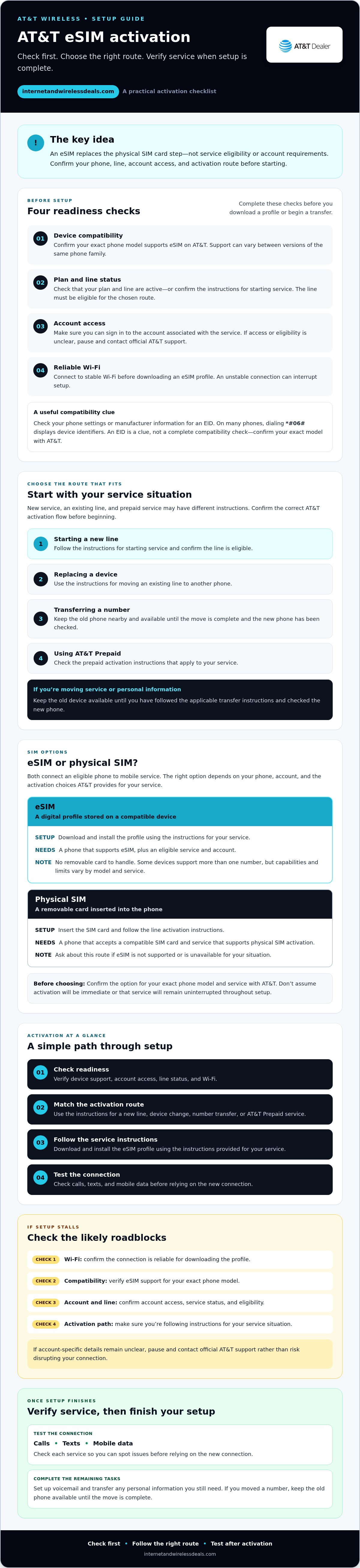
Before starting eSIM activation for AT&T wireless, check four things: your device, your plan, your account access, and the activation route for your service. An eSIM replaces the physical SIM card step, but it doesn’t bypass service eligibility or account requirements. Your line still needs to be eligible, and you need to follow the correct setup process.
An eSIM is a digital SIM profile stored on a compatible device, while a physical SIM is a removable card inserted into the phone. The digital profile connects your device to a mobile network without swapping a card. For a broader, neutral explanation of how eSIM technology works, see Wikipedia’s overview.
Quick preflight checklist:
- Confirm your exact phone model supports eSIM on AT&T.
- Make sure you can access the account associated with the service.
- Check that your plan and line are active, or confirm the steps for starting service.
- Connect to reliable Wi-Fi before downloading an eSIM profile.
How to check whether a phone supports eSIM
Look in your phone’s settings or the manufacturer’s supported-device information for an EID, the identifier associated with an eSIM. On many phones, dialing *#06# displays device identifiers; check the results for an EID. This is a useful clue, not a complete compatibility check. Confirm your exact model with AT&T, since support can vary between versions of the same phone family.
What to have ready before starting
Connect to stable Wi-Fi before you begin. Your device needs internet access to download the eSIM profile, and an unstable connection can interrupt setup. Sign in to your AT&T account and check the line’s service status. If you’re moving service or personal information to another phone, keep the old device nearby and available until you’ve followed the applicable transfer instructions and checked the new phone.
These checks can help you choose the right setup flow. New service, an existing line, and prepaid service may use different instructions. Confirm the route with AT&T before starting, especially if your account status is unclear. If you can’t verify eligibility or access, pause and contact official AT&T support for account-specific guidance.
ESIM or physical SIM: choose the right AT&T activation path
Both SIM types connect an eligible phone to mobile service, but they use different setup methods. An eSIM is downloaded to a compatible device, so there’s no removable card to handle. A physical SIM is a card you insert into the phone. Neither option is right for every situation: your choice depends on your exact phone, account, and the activation options AT&T provides for your service.
| Consideration | eSIM | Physical SIM |
|---|---|---|
| Setup method | Download and install a digital profile using the instructions provided for your service. | Insert the SIM card and follow the instructions for activating the line. |
| Device requirements | The phone must support eSIM, and the service and account must be eligible for that activation route. | The phone must accept a compatible SIM card, and the service must support physical SIM activation. |
| Practical considerations | No removable card to handle. Some devices can support more than one number, but capabilities and limits vary by model and service. | A useful option to ask about if eSIM isn’t supported or isn’t available for your situation. |
For a technical overview of how eSIM works, consult the GSMA’s resources on official eSIM standards. To confirm what’s available for your line, check the activation options with AT&T before you begin.
When eSIM may be more convenient
If your phone supports eSIM and your service is eligible, digital setup lets you activate without handling a physical card. Some eSIM-capable phones can use more than one number, but the number of supported lines and how they work depend on the device and service. Check your phone’s specifications and confirm your account’s options. Don’t assume activation will be immediate or that service will remain uninterrupted throughout setup.
When a physical SIM may make more sense
If your phone doesn’t support eSIM, or the eSIM option isn’t available for your account, ask AT&T whether a physical SIM is the appropriate route. Confirm the correct option for your exact model and service before ordering or activating a SIM. If plan details are part of your decision, the guide AT&T Wireless Plans 2026: 5G Unlimited Comparison Guide may help you review plan context. You can also explore AT&T wireless plan options through Internet and Wireless Deals, an independent third-party marketing partner and authorized AT&T retailer.
How to activate an AT&T Wireless eSIM step by step
The right sequence depends on whether you’re starting a new line, moving an existing number, or setting up prepaid service. Before beginning eSIM activation for AT&T wireless, confirm that your phone supports eSIM, you can access the relevant account, and you have reliable Wi-Fi. Then follow the current AT&T instructions for your service type. Menu names and prompts can vary by device.
In short: confirm your device and service, choose the matching AT&T activation path, download the eSIM over Wi-Fi, and follow your phone’s prompts until setup is confirmed.
- Identify your situation. Is the phone new to AT&T, replacing a device on an existing line, or being set up for AT&T Prepaid? These scenarios may use different activation instructions. Don’t treat a number transfer as a new-line activation.
- Check readiness. Confirm the exact device model supports eSIM, sign in to the relevant account, and verify the service status. Connect the phone to Wi-Fi before trying to download a profile.
- Open the official AT&T activation flow. Select the SIM and service type that match your situation. Follow the current instructions on AT&T’s activation page or the instructions provided with your device or service. AT&T may provide a QR code for the eSIM; use it only as directed.
- Download and install the eSIM. Follow the phone’s on-screen prompts. Depending on the device and activation route, you may be asked to add a mobile plan or scan an AT&T-provided QR code. Screens and wording can differ, so follow the prompts for your device.
- Wait for confirmation. Let the activation flow finish before testing the line. If confirmation doesn’t appear or a prompt differs from the instructions, pause and check current AT&T guidance rather than repeating steps at random. The Trusted Connectivity Alliance explains how eSIM supports secure and flexible connectivity.
New AT&T device or line
First determine whether the phone is new to AT&T or replacing a device already associated with an active line. Follow the corresponding AT&T activation flow and select the correct SIM and service type. Keep the phone on Wi-Fi, follow its prompts, and wait for activation confirmation before checking calls, texts, and data.
Existing number transfer or AT&T Prepaid
Transferring a number? Check AT&T’s current number-transfer sequence before turning on or setting up the new device. AT&T’s guidance may direct you to complete activation steps first, so don’t assume the new phone’s initial setup comes first. Using AT&T Prepaid? Follow the current official prepaid eSIM instructions, which may differ from the standard AT&T Wireless flow. If you’re unsure which route applies, contact official AT&T support for account-specific guidance.
AT&T eSIM activation troubleshooting: what to check if setup stalls
If eSIM activation for AT&T wireless stalls, start with checks that don’t change your account or remove anything from your phone. A failed download or missing signal doesn’t always mean you need to restart the whole process. Note where setup stopped, then check the connection, device, account, and activation route.
- Wi-Fi: Confirm the phone has a stable connection. If the download paused, follow the device or AT&T instructions before trying again.
- Compatibility: Check the exact device model against current AT&T guidance. If available, look for an EID in the device information or dial *#06# and check the displayed identifiers.
- Account and service: Confirm you can access the account and that the line or plan is active as required for your activation.
- Activation route: Make sure the instructions match your situation: a new line, a replacement device, a number transfer, or AT&T Prepaid.
If the eSIM download or activation does not complete
Check Wi-Fi first, then compare your phone’s EID and exact model with AT&T’s current compatibility information. Review the activation option you selected, too. A prepaid setup or replacement device may follow a different flow from a new line. Restart the phone or retry setup only if the device or AT&T instructions recommend it. Don’t delete an existing eSIM profile just to start over. If the profile needs to be replaced or downloaded again, ask AT&T for the current account-specific steps.
If the phone activates but service is missing
Open the phone’s cellular or mobile network settings and check whether the AT&T line appears and is turned on. Note any status message, but avoid changing unfamiliar settings. If you’re transferring a number, AT&T may need to review the timing or account details before service works as expected. Contact official AT&T support if the line is missing, a transfer appears stuck, or calls and data remain unavailable after you follow the activation instructions.
Protect the setup you already have. Don’t repeatedly delete eSIM profiles, reset network settings, or erase the device unless AT&T’s current guidance specifically tells you to. These actions can affect saved settings or make the problem harder to diagnose. If basic checks don’t resolve the issue, official AT&T support is the right place for account-specific or persistent network help. Internet and Wireless Deals is an independent third-party marketing partner and authorized AT&T retailer, not a technical support provider. If you’re also reviewing service options, explore AT&T wireless plans.
After activation: test service and choose your next AT&T wireless step
Once eSIM activation for AT&T wireless is complete, check that the line works before relying on it for calls, messages, or mobile data. These quick tests can help you spot a service issue early.
How to confirm the eSIM is working
- Check the line: Open your phone’s cellular or mobile network settings. Confirm the intended AT&T line appears and is active.
- Test a call: Place a call and check that it connects as expected.
- Send a text: Send a message, then confirm you can receive one if possible.
- Test mobile data: Temporarily turn off Wi-Fi and try loading a webpage or using an app that needs an internet connection. Turn Wi-Fi back on afterward if you prefer.
If a test fails, note what happened and check the line status in your device settings. Contact official AT&T support for account-specific help, especially if you’ve transferred a number or the line appears active but service is missing. Don’t remove the eSIM profile or reset the device unless current AT&T guidance tells you to.
Once service works, set up voicemail if needed and transfer personal information from your old device if you haven’t done so already. Keep the previous phone available until you’ve confirmed that the information and services you need are accessible on the new one.
Where to go next if you’re comparing AT&T service
Technical setup and plan selection are separate tasks. Activating an eSIM doesn’t, by itself, confirm or change your plan’s terms. Your service needs may depend on how you use your phone, the devices on your account, and your account circumstances. Review the details that matter to you before making a plan decision.
For additional plan context, see AT&T Wireless Plans 2026: 5G Unlimited Comparison Guide. Internet and Wireless Deals is an independent third-party marketing partner and authorized AT&T retailer that helps customers explore AT&T wireless options and sign-up pathways. To review service options, explore the current choices there. For eSIM troubleshooting or account questions, contact official AT&T support instead.
Make Your Next Wireless Move With Confidence
A smooth eSIM activation for AT&T wireless starts with a few checks: confirm your phone supports eSIM, make sure your account and service are ready, and follow the activation path for your situation. New lines, device replacements, number transfers, and prepaid service may use different steps, so verify the correct instructions before you begin.
After setup, check that the intended line is active, then test a call, text, and mobile data. If service is missing or activation stalls, avoid deleting the eSIM profile or resetting your phone without official AT&T guidance. Contact AT&T support for account-specific activation or transfer questions.
Ready to explore service options? Internet and Wireless Deals is an independent third-party marketing partner and authorized AT&T retailer, offering wireless plan information and sign-up options. Explore AT&T wireless options and find a plan that fits. Review your options, then choose the next step that works for you.
Frequently Asked Questions
How do I activate an eSIM for AT&T Wireless?
First confirm that your phone supports eSIM and that you can access the account for the line. Connect to Wi-Fi, then follow AT&T’s current activation instructions for your situation, such as a new line or replacement device. Follow your phone’s prompts to download and install the eSIM profile. The eSIM activation for AT&T wireless process can vary by device and service type, so use the instructions shown for your setup.
How can I tell if my phone is compatible with an AT&T eSIM?
Check your phone’s settings or device information for an EID, which can indicate eSIM capability. You can also dial *#06# and look for an EID among the displayed identifiers. Then check your exact model against AT&T’s current compatibility information. General lists aren’t conclusive because model versions can differ. Confirm that the device meets AT&T’s current requirements before starting activation.
Do I need Wi-Fi to activate an AT&T eSIM?
Use a reliable Wi-Fi connection to download the eSIM profile. Your phone needs internet access for this step, so connect before beginning and keep the connection stable while following the activation prompts. If the download stalls, check Wi-Fi first and review AT&T’s current instructions before trying again. Don’t remove an existing eSIM profile or change account settings as a first troubleshooting step.
Can I transfer my existing number to an AT&T eSIM?
An existing number may be transferred to an eSIM on a compatible device, but follow AT&T’s current number-transfer and activation sequence. Transfer steps can differ from activating a new line. Check the instructions before turning on or setting up the new device, and keep your old phone available while you complete the move. If the transfer stalls or account details need review, contact official AT&T support.
What should I do if my AT&T eSIM activation is stuck?
Check that Wi-Fi is stable, your exact phone model supports eSIM, your account and service are ready, and you selected the right activation route. Follow AT&T’s or your device’s instructions before restarting or retrying setup. Don’t delete an existing eSIM profile or reset the phone without official guidance. If activation remains stuck, or a number transfer is involved, contact AT&T support for account-specific help.
Can I use an AT&T physical SIM instead of an eSIM?
A physical SIM may be an option if your device doesn’t support eSIM or an eSIM activation route isn’t available for your service. Check your phone’s SIM requirements and confirm the correct option with AT&T before obtaining or activating a card. The available route depends on your device and account. Choosing a physical SIM changes the SIM setup method, not the need to meet service and account requirements.
Is AT&T Prepaid eSIM activation different from AT&T Wireless activation?
It can be. AT&T Prepaid and other AT&T Wireless service may have different activation instructions and account-management steps. Identify your service type before starting, then use the current official instructions for that service rather than assuming one activation flow fits both. If you’re unsure which steps apply, check AT&T’s prepaid guidance or contact official AT&T support for account-specific direction.


